1a) Set Up neuPrint for Python
This page completes the setup for the advanced neuPrint tutorials. By the end, your project will contain the packages and connection information that Python needs, while your personal neuPrint token remains private.
Before You Begin
You should already have:
Python, VS Code, and a Conda environment from the Programming Guide;
a project folder opened in VS Code; and
for an advanced competition project, a public repository created by following Tutorial 4: Git, GitHub, and the Command Line.
If you are not using Git yet, you can still complete the connection test below. You must set up the public repository before submitting a project that contains code.
1. Activate Your Environment and Install the Packages
In VS Code, select Terminal → New Terminal. Activate the Conda environment you created for this project. The Programming Guide used neuroimaging as its example name; replace it if you chose a different name:
conda activate neuroimagingThe environment name should appear near the beginning of the terminal prompt. Install the packages used across Tutorials 1b–1d:
python -m pip install neuprint-python python-dotenv pandas plotly scipy jupyterpython -m pip installs the packages for the active Python environment. In particular:
neuprint-pythoncommunicates with neuPrint;python-dotenvreads the private settings in a.envfile;pandasworks with tables;plotlycreates interactive figures; andscipyprovides the clustering tools used later.
If you change environments later, you must install the packages in the new environment too.
2. Create a neuPrint Account and Copy Your Token
Open neuPrint in a browser and sign in with a Google account.
Select your account icon in the upper-right corner.
Open Account and copy the entire authentication token.
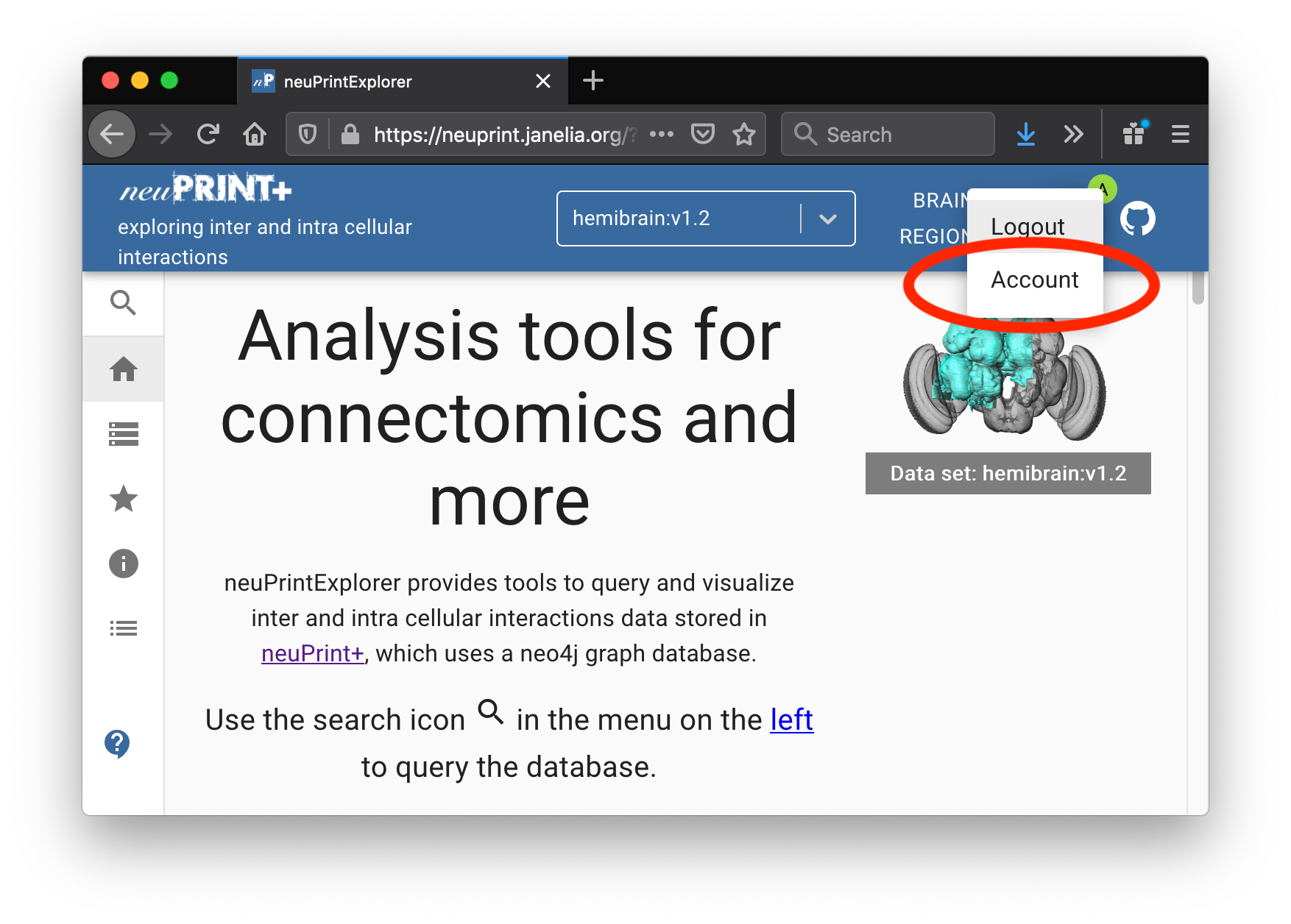
Finding your neuPrint token. Open the account menu in the upper-right corner after signing in.
Python needs three values to create a neuPrint Client:
server — where the neuPrint service is hosted;
dataset — the connectome and version to query; and
token — the private key that identifies your account.
This competition uses the server neuprint.janelia.org and dataset male-cns:v1.0.
3. Create the Private .env File
In the VS Code Explorer, select New File in the top level of your project folder and name the file exactly:
.envThis method works on both Windows and macOS. Add the following lines:
NEUPRINT_SERVER=neuprint.janelia.org
NEUPRINT_DATASET=male-cns:v1.0
NEUPRINT_TOKEN=PASTE_YOUR_TOKEN_HERE
Replace only PASTE_YOUR_TOKEN_HERE, then save the file. Do not add spaces around = and do not share the completed file.
A .env file is a plain text file containing environment variables: named settings that code can read. It is not the same as a Python or Conda environment. The similar names are unfortunate:
a Conda environment keeps a project’s Python and packages together;
a
.envfile keeps small configuration values, including secrets, outside the notebook.
4. Make Git Ignore .env
In the same top-level project folder, open the existing .gitignore file. If it does not exist, create it in VS Code. Make sure it contains:
.env
.ipynb_checkpoints/
__pycache__/
.gitignore tells Git not to track matching files. Save it, then check the rule in the terminal:
If this folder is not yet a Git repository, keep the rule and skip the next two Git commands until you have completed the Git/GitHub tutorial.
git check-ignore .envThe output should be .env. Now run:
git statusYou may see .gitignore, but you should not see .env as a file to commit. If .env appears, stop and check that both files are in the repository’s top-level folder and that the ignore line is exactly .env.
5. Add a Safe .env.example
Other people need to know which settings your code expects, but they do not need your values. Create a second file named .env.example:
NEUPRINT_SERVER=neuprint.janelia.org
NEUPRINT_DATASET=male-cns:v1.0
NEUPRINT_TOKEN=paste-your-own-token-here
This example file contains no secret, so it should be committed to GitHub with .gitignore. Your folder may now look like this:
connectome-2026-project/
├── .env                 # private; never commit
├── .env.example         # safe instructions; commit this
├── .gitignore           # tells Git to ignore .env
├── README.md
└── notebooks/
6. Test the Connection
Create a notebook in the project folder, select the kernel for your Conda environment, and run this cell:
import os

from dotenv import load_dotenv
from neuprint import Client

load_dotenv()

settings = {
    "NEUPRINT_SERVER": os.getenv("NEUPRINT_SERVER"),
    "NEUPRINT_DATASET": os.getenv("NEUPRINT_DATASET"),
    "NEUPRINT_TOKEN": os.getenv("NEUPRINT_TOKEN"),
}

missing = [name for name, value in settings.items() if not value]
if missing:
    raise ValueError(f"Missing settings in .env: {', '.join(missing)}")

client = Client(
    settings["NEUPRINT_SERVER"],
    dataset=settings["NEUPRINT_DATASET"],
    token=settings["NEUPRINT_TOKEN"],
)

print("Connected to neuPrint version:", client.fetch_version())
The code loads the three values without displaying your token, checks that none is missing, creates the Client, and asks the server for its version. If a version prints, the setup is complete.
If the Test Does Not Work
ModuleNotFoundError: the notebook is probably using a different Python environment. In VS Code, select the notebook’s kernel in the upper-right corner and choose the environment in which you installed the packages.
“Missing settings in .env”: make sure the file is named exactly .env, is saved, and is in the project folder you opened. Check the spelling of all three variable names.
Authentication or authorization error: sign in to neuPrint again and copy the complete token. Check for accidental spaces. Do not post the token when asking for help.
git check-ignore .env prints nothing: check the names and locations of .env and .gitignore, then run the command from the repository’s top-level folder.
For the underlying client requirements, see the official neuprint-python Quickstart. Its examples place the token directly in code for brevity; keep using .env in your own project so the token cannot be committed accidentally.
Setup Checklist
Before continuing, confirm that:
the connection test prints a neuPrint version;
.envcontains your real token;git check-ignore .envprints.env;git statusdoes not offer to commit.env; and.env.examplecontains only the placeholder token.
You are ready for 1b) Querying Neuronal Connections with the neuPrint API.